

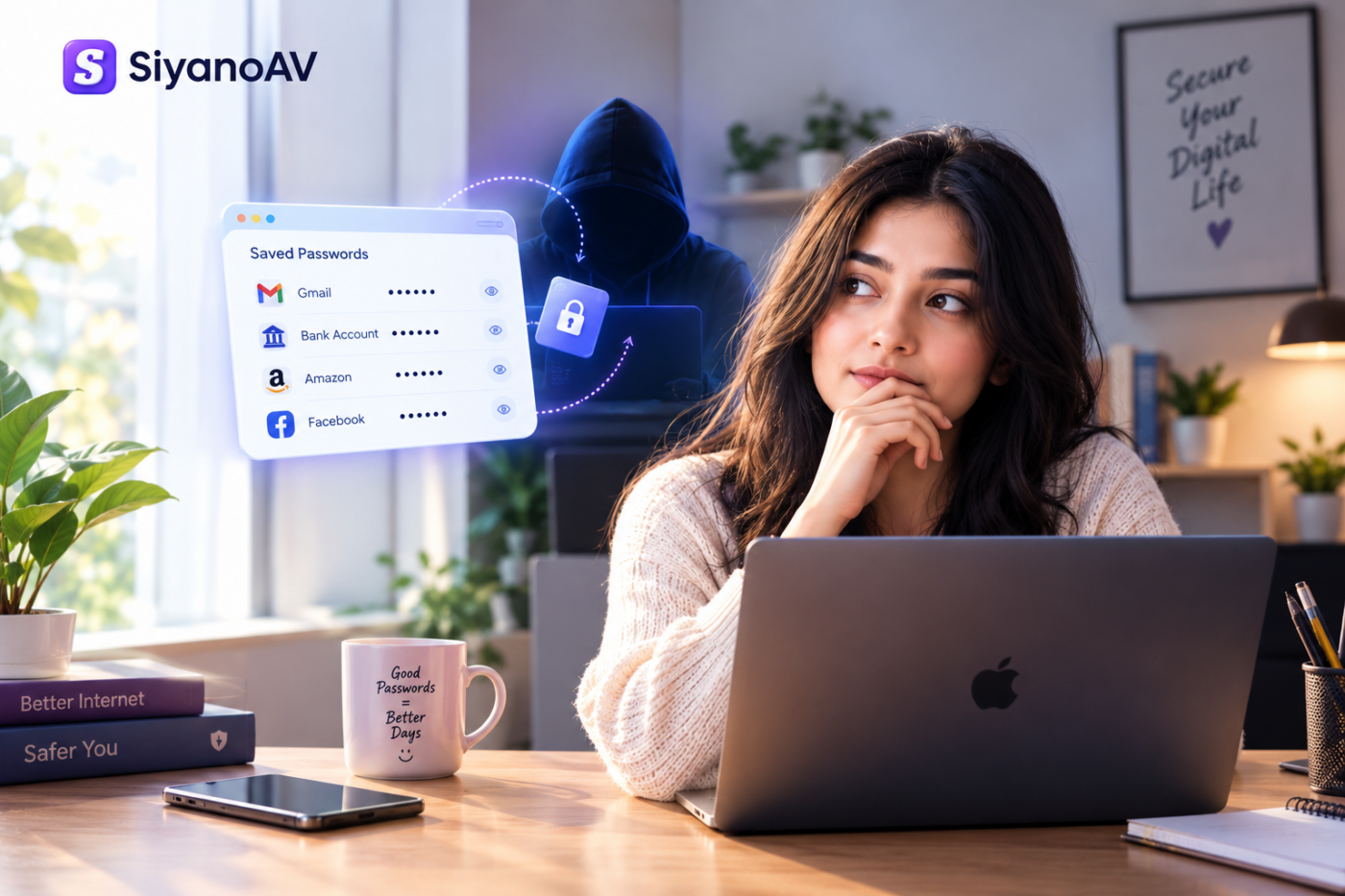

Are Browser Saved Passwords Safe? Here’s Who Else Can Read Them
Are browser saved passwords safe for managing your everyday digital logins, or are you quietly exposing your sensitive credentials to online risks?
Think about the last time you signed into your primary email or banking account. Did you type your complex password manually, or did your browser automatically fill it in for you? While this convenient feature saves time, it raises critical cybersecurity questions regarding account safety, device protection, and identity theft.
In this comprehensive guide, we will analyze where web browsers store your credentials, how malware exploits local storage, and whether built-in browser tools offer enough defense compared to dedicated password managers.
Where Browsers Store Credentials: Are Browser Saved Passwords Safe?
When you click “Save Password” on Chrome, Edge, Safari, or Firefox, your browser encrypts your username and password before writing them to a local file on your computer’s hard drive. If you sync your browser across multiple devices using a Google or Microsoft account, a encrypted copy is also stored in cloud storage.
Although the background encryption relies on strong algorithms, an architectural vulnerability remains: your browser must constantly decrypt these saved credentials on demand whenever you load a login page.
Because decryption keys are stored locally on your machine to ensure smooth autofill functionality, any software running on your operating system with user-level privileges can potentially request access to that same sensitive data.
How Cybercriminals Steal Browser Passwords
Many people assume cybercriminals manually crack passwords account by account. In reality, cyber threats rely on automated, scalable tools designed for mass credential harvesting.
The primary tool used to compromise stored logins is infostealer malware. This targeted malicious program works undetected in the background, specifically digging into your browser files to steal saved credentials, active session tokens, and autofill information.
[ Compromised Download / Phishing Email ]
                       │
                       ▼
            [ Infostealer Malware ]
                       │
                       ▼
[ Extracts Browser Saved Passwords & Session Cookies ]
                       │
                       ▼
      [ Sends Stolen Data to Attacker Server ]
Common Infection Vectors for Infostealers:
-
Pirated Software & Cracks: Downloading unauthorized versions of commercial software from file-sharing platforms.
-
Malicious Email Attachments: Phishing messages pretending to contain urgent invoices, shipping notices, or legal documents.
-
Unverified Messaging Links: Files distributed via messaging platforms like WhatsApp, Telegram, or Discord.
-
Fake Browser Updates: Pop-ups on untrusted websites prompting you to update your browser or media player immediately.
Additionally, physical access poses a direct security threat. Anyone who gains temporary access to an unlocked computer can open browser password settings and view stored credentials in plain text.
Built-In Browser Managers vs Dedicated Vaults
Understanding the distinction between browser-based password saving and standalone security vaults is essential for keeping your digital accounts secure.
| Feature / Criteria | Built-In Browser Password Manager | Standalone Password Manager |
| Primary Design Goal | Browser convenience & fast sign-ins | Isolated data protection & key security |
| Storage Isolation | Bundled within the web browser | Stored in an isolated, encrypted vault |
| Cross-Platform Support | Limited mostly to specific browsers | Syncs across all OS platforms, apps, and browsers |
| Malware Resistance | Vulnerable if browser process is hooked | Vault stays locked until master password is entered |
| Best Used For | Low-risk forums, newsletters, casual sites | Critical email, banking, and enterprise accounts |
While browser tools work well for non-sensitive browsing, high-value accounts require isolated protection. External security guidelines, such as the Microsoft Security Best Practices, strongly emphasize using zero-knowledge encryption models for high-value credentials.
Are Browser Saved Passwords Safe on Shared Computers?
Using public computers at libraries, cyber cafes, or shared family desktops carries severe security risks. Storing credentials on shared hardware leaves your accounts completely accessible to the next user.
Essential Rules for Shared Workstations:
-
Always open a Private / Incognito browsing session before logging in.
-
Explicitly decline any browser pop-up asking to save your credentials.
-
Manually log out of all active sessions and close all browser windows when finished.
-
If you suspect a shared computer was infected, change your credentials immediately from your primary mobile device.
To explore how you can better protect your online session data, read through Google’s official documentation on security and privacy.
How to Disable Password Saving in Google Chrome
If you want to move away from storing sensitive credentials directly inside your browser, follow these simple steps:
- Open your Chrome browser, tap the three-dot menu icon located in the upper-right corner, and choose Settings.
-
Look at the left sidebar, select the ‘Autofill and passwords’ section, and open ‘Google Password Manager’.
-
Click Settings inside the password manager interface.
-
Toggle OFF both Offer to save passwords and Auto sign-in.
-
Security Tip: Export your saved list, import it into a dedicated security vault, delete the exported file from your hard drive, and clear your browser password history.
How to Protect Saved Credentials Against Malware Attacks
Because browser password safety depends directly on device health, protecting your physical machine is your first line of defense.
-
Avoid Unverified Software Downloads: Refrain from downloading pirated software, cheat engines, or free utility tools from non-official sources.
-
Keep Systems Updated: Regularly patch your operating system, web browsers, and extensions to prevent exploit kits from targeting unpatched vulnerabilities.
-
Enable Multi-Factor Authentication (MFA): Always activate MFA on your accounts. Even if an infostealer obtains your password, attackers cannot bypass the multi-factor code on your mobile device.
-
Deploy Real-Time Antivirus Scanning: Use an active security solution to intercept malicious downloads before they execute.
Integrated security tools like SiyanoAV Internet Security combine real-time threat scanning, browser protection, and a dedicated SiyanoAV Password Manager to keep your credentials stored in an encrypted database isolated from malware.
Frequently Asked Questions
Are browser saved passwords safe for everyday daily use?
For non-sensitive accounts on a clean, private device protected by strong screen locks and multi-factor authentication, browser storage is relatively fine. However, it remains vulnerable if your operating system becomes infected with infostealer malware.
Can a stolen laptop expose my browser passwords?
Yes. If your laptop is stolen while unlocked or lacks disk encryption (such as BitLocker), someone with physical access can view or export your browser’s saved credential database.
Should I clear all passwords saved in my browser?
Rather than deleting everything immediately, migrate your sensitive logins (such as primary email, financial portals, and work accounts) to a dedicated password vault first. Once transferred, clear the saved credentials list from your browser storage completely.
Final Bottom Line
So, are browser saved passwords safe for long-term credential management? While built-in browser features offer speed and daily convenience, they were never designed to serve as primary security vaults against modern infostealer malware.
By combining a clean system, multi-factor authentication, and an isolated password vault, you eliminate blind trust and ensure your personal data remains fully protected.
Is your device free from hidden security threats? Run a full system check with the SiyanoAV Free Trial to detect hidden infostealers and safeguard your sensitive credentials.



Leave a Comment